Guide
This Guide is designed to be read from top to bottom as a whole. You can skip parts that are obvious.
Installation
AeroSpace-edge is distributed as a zip on the releases page and as a Homebrew cask in the fork's own tap:
brew install --cask vitorebatista/tap/aerospace-edge
Mind the tap: brew install --cask nikitabobko/tap/aerospace installs upstream AeroSpace,
which is a different app. To install manually instead:
-
Download the latest zip from the releases page
-
Unpack the zip
-
Put the unpacked
AeroSpace-edge-v$VERSION/AeroSpace-edge.appin/Applications -
Put the unpacked
AeroSpace-edge-v$VERSION/bin/aerospace-edgeanywhere on your$PATH(optional; only needed to interact with AeroSpace-edge from the CLI)
unzip AeroSpace-edge-v*.zip
mv AeroSpace-edge-v*/AeroSpace-edge.app /Applications/
cp  AeroSpace-edge-v*/bin/aerospace-edge /usr/local/bin/
open -a /Applications/AeroSpace-edge.app
Shell completions for bash, fish and zsh ship in the zip under shell-completion/.
Installs alongside upstream AeroSpace
The fork has its own bundle id (vitorebatista.aerospace-edge), app name, socket and
Accessibility grant, so it never overwrites an existing /Applications/AeroSpace.app. You
can keep both installed and run one at a time.
Gatekeeper
If you see this message
"AeroSpace-edge.app" can't be opened because Apple cannot check it for malicious software.
Option 1 to resolve the problem
xattr -d com.apple.quarantine /Applications/AeroSpace-edge.app
Option 2 to resolve the problem
-
navigate in Finder to
/Applications/AeroSpace-edge.app -
Right mouse click
-
Open (yes, it’s that stupid)
Configuring AeroSpace
Custom config location
AeroSpace-edge looks for its own config first, then falls back to an upstream AeroSpace config. In priority order:
-
~/.aerospace-edge.toml -
${XDG_CONFIG_HOME}/aerospace-edge/aerospace-edge.toml -
~/.aerospace.toml -
${XDG_CONFIG_HOME}/aerospace/aerospace.toml
(XDG_CONFIG_HOME falls back to ~/.config if the variable is not set.)
The two tiers are resolved independently, so having both an aerospace-edge config and an
upstream aerospace config is not ambiguous — the fork's own config simply wins. That lets
you run the fork next to upstream on the very same config, while ~/.aerospace-edge.toml
stays available for fork-only options upstream would reject.
If the config is found in more than one location within the same tier, the ambiguity is reported.
Settings window
Open the direct Settings… item in the AeroSpace-edge menu-bar menu to edit the active config file. It is a source-preserving editor for that TOML file, not a separate settings store; Application controls such as reload, menu-bar appearance, and update checking live there too.
The Settings section has a page per destination in the window, documenting the options it holds, the TOML key behind each one, and what changes when you turn it on.
Config samples
Please see the following config samples:
AeroSpace uses TOML 1.1.0 format for the config. See TOML spec for more info
Default config
The default config is part of the documentation, it contains all trivial configuration keys with comments. Please read the default config! Non-trivial configuration options are mentioned further in this guide. If no custom config is found, AeroSpace will load the default config.
If the key is omitted in the custom config, it falls back to the value in the default config, unless it’s stated otherwise for the specific keys. Namely:
-
mode.*.binding. It falls back to the empty TOML table. Your config is the source of truth for keyboard bindings. You must explicitly mention all the keyboard bindings and binding modes in your config. -
on-focused-monitor-changed. It falls back to the empty TOML array. -
execTOML table. See: exec-* Environment Variables (It’s so boring and verbose, I don’t even want to mention it in thedefault-config.toml)
Rule of thumb: all the "scalar like" values always fall back to the default config. All the "vector like" values fall back to the empty TOML array or table.
That allows you to keep your config tidy and clean from trivial config keys for which you like the default values. You can bootstrap your custom config by copying the default config from the app installation:
cp /Applications/AeroSpace-edge.app/Contents/Resources/default-config.toml ~/.aerospace-edge.toml
# Place a copy of this config to ~/.aerospace-edge.toml
# After that, you can edit ~/.aerospace-edge.toml to your liking

# Config version for compatibility and deprecations
# See: https://vitorebatista.github.io/AeroSpace-edge/guide/#config-version
# Fallback value (if you omit the key): config-version = 1
config-version = 2

# You can use it to add commands that run after AeroSpace startup.
# Available commands : https://vitorebatista.github.io/AeroSpace-edge/#commands
after-startup-command = []

# Start AeroSpace at login
start-at-login = false

# Automatically reload the config when the config file is saved
# After setting this to true, reload once manually to start the auto-reloading
auto-reload-config = false

# Normalizations. See: https://vitorebatista.github.io/AeroSpace-edge/guide/#normalization
enable-normalization-flatten-containers = true
enable-normalization-opposite-orientation-for-nested-containers = true
# When true, forces the tree to be binary and orients each container by the aspect ratio of its rect
# (horizontal if wider than tall, vertical otherwise). Overrides the opposite-orientation normalization.
enable-normalization-binary-tree = false

# See: https://vitorebatista.github.io/AeroSpace-edge/guide/#layouts
# The 'accordion-padding' specifies the size of accordion padding
# You can set 0 to disable the padding feature
accordion-padding = 30

# Possible values: tiles|accordion
default-root-container-layout = 'tiles'

# Possible values: horizontal|vertical|auto
# 'auto' means: wide monitor (anything wider than high) gets horizontal orientation,
#               tall monitor (anything higher than wide) gets vertical orientation
default-root-container-orientation = 'auto'

# Mouse follows focus when focused monitor changes
# Drop it from your config, if you don't like this behavior
# See https://vitorebatista.github.io/AeroSpace-edge/guide/#on-focus-changed-callbacks
# See https://vitorebatista.github.io/AeroSpace-edge/commands/move-mouse/
# Fallback value (if you omit the key): on-focused-monitor-changed = []
on-focused-monitor-changed = ['move-mouse monitor-lazy-center']

# You can effectively turn off macOS "Hide application" (cmd-h) feature by toggling this flag
# Useful if you don't use this macOS feature, but accidentally hit cmd-h or cmd-alt-h key
# Also see: https://vitorebatista.github.io/AeroSpace-edge/goodies/#disable-hide-app
automatically-unhide-macos-hidden-apps = false

# What to do when an app activates itself while its window lives on another workspace.
# Possible values: always|smart
#   'always' - follow the activation and switch to that workspace (upstream behavior)
#   'smart'  - switch only when the activation looks user-initiated (preceded by a mouse
#              click: Dock icon, notification banner, window on another monitor).
#              Input-less self-activations ("focus stealing") no longer switch your
#              workspace. Note: cmd-tab is keyboard-driven, so under 'smart' it won't
#              auto-switch either - use the workspace keybinding instead.
# Fallback value (if you omit the key): focus-follows-app-activation = 'always'
focus-follows-app-activation = 'always'

# When a new window opens, move it offscreen the instant it's detected so macOS never
# paints it at its native spawn position (usually screen center) before AeroSpace tiles it.
# Reduces the flash/jump you see when a window appears and the tiles rearrange.
# Opt-in because moving windows via the Accessibility API is app-dependent.
# Fallback value (if you omit the key): new-window-prevent-flicker = false
new-window-prevent-flicker = false
# Draw a colored border around the currently focused window.
# Native alternative to external tools like JankyBorders for the focused-window case.
# Fallback value (if you omit the key): focused-window-border = false
focused-window-border = false
# Border color as 0xAARRGGBB (alpha, red, green, blue). Same format as JankyBorders.
# Fallback value (if you omit the key): focused-window-border-color = '0xff12B981'
focused-window-border-color = '0xff12B981'
# Border thickness in points.
# Fallback value (if you omit the key): focused-window-border-width = 4
focused-window-border-width = 4
# Border opacity as a percentage 0-100. Multiplies the alpha of the color above.
# Fallback value (if you omit the key): focused-window-border-opacity = 100
focused-window-border-opacity = 100
# Corner radius (points) of the window the border hugs. macOS does not expose the
# per-window corner radius, so this is a global value - tune it to match your apps.
# Fallback value (if you omit the key): focused-window-border-radius = 10
focused-window-border-radius = 10
# Pull the border this many points back into the window so the window's own rounded
# corner masks any radius mismatch (hides corner gaps). 0 = border fully outside.
# Fallback value (if you omit the key): focused-window-border-inset = 0
focused-window-border-inset = 0

# List of workspaces that should stay alive even when they contain no windows,
# even when they are invisible.
# This config option is only available since 'config-version = 2'
# Fallback value (if you omit the key): persistent-workspaces = []
persistent-workspaces = ["1", "2", "3", "4", "5", "6", "7", "8", "9", "A", "B",
                         "C", "D", "E", "F", "G", "I", "M", "N", "O", "P", "Q",
                         "R", "S", "T", "U", "V", "W", "X", "Y", "Z"]

# A callback that runs every time binding mode changes
# See: https://vitorebatista.github.io/AeroSpace-edge/guide/#binding-modes
# See: https://vitorebatista.github.io/AeroSpace-edge/commands/mode/
on-mode-changed = ""

focus-follows-mouse.enabled = false

# Possible values: (qwerty|dvorak|colemak)
# See https://vitorebatista.github.io/AeroSpace-edge/guide/#key-mapping
key-mapping.preset = 'qwerty'

# Gaps between windows (inner-*) and between monitor edges (outer-*).
# Possible values:
# - Constant:     gaps.outer.top = 8
# - Per monitor:  gaps.outer.top = [{ monitor.main = 16 }, { monitor."some-pattern" = 32 }, 24]
#                 In this example, 24 is a default value when there is no match.
#                 Monitor pattern is the same as for 'workspace-to-monitor-force-assignment'.
#                 See:
#                 https://vitorebatista.github.io/AeroSpace-edge/guide/#assign-workspaces-to-monitors
gaps.inner.horizontal = 0
gaps.inner.vertical =   0
gaps.outer.left =       0
gaps.outer.bottom =     0
gaps.outer.top =        0
gaps.outer.right =      0

# 'main' binding mode declaration
# See: https://vitorebatista.github.io/AeroSpace-edge/guide/#binding-modes
# 'main' binding mode must be always presented
# Fallback value (if you omit the key): mode.main.binding = {}
[mode.main.binding]

    # All possible keys:
    # - Letters.        a, b, c, ..., z
    # - Numbers.        0, 1, 2, ..., 9
    # - Keypad numbers. keypad0, keypad1, keypad2, ..., keypad9
    # - F-keys.         f1, f2, ..., f20
    # - Special keys.   minus, equal, period, comma, slash, backslash, quote, semicolon,
    #                   backtick, leftSquareBracket, rightSquareBracket, space, enter, esc,
    #                   backspace, tab, pageUp, pageDown, home, end, forwardDelete,
    #                   sectionSign (ISO keyboards only, european keyboards only)
    # - Keypad special. keypadClear, keypadDecimalMark, keypadDivide, keypadEnter, keypadEqual,
    #                   keypadMinus, keypadMultiply, keypadPlus
    # - Arrows.         left, down, up, right

    # All possible modifiers: cmd, alt, ctrl, shift

    # All possible commands: https://vitorebatista.github.io/AeroSpace-edge/#commands

    # See: https://vitorebatista.github.io/AeroSpace-edge/commands/exec-and-forget/
    # You can uncomment the following lines to open up terminal with alt + enter shortcut
    # (like in i3)
    # alt-enter = '''exec-and-forget osascript -e \
    # 'tell application "Terminal" to tell (do script) to activate' '''

    # See: https://vitorebatista.github.io/AeroSpace-edge/commands/layout/
    alt-slash = 'layout tiles horizontal vertical'
    alt-comma = 'layout accordion horizontal vertical'

    # See: https://vitorebatista.github.io/AeroSpace-edge/commands/focus/
    alt-h = 'focus left'
    alt-j = 'focus down'
    alt-k = 'focus up'
    alt-l = 'focus right'

    # See: https://vitorebatista.github.io/AeroSpace-edge/commands/move/
    alt-shift-h = 'move left'
    alt-shift-j = 'move down'
    alt-shift-k = 'move up'
    alt-shift-l = 'move right'

    # See: https://vitorebatista.github.io/AeroSpace-edge/commands/resize/
    alt-minus = 'resize smart -50'
    alt-equal = 'resize smart +50'

    # See: https://vitorebatista.github.io/AeroSpace-edge/commands/workspace/
    alt-1 = 'workspace 1'
    alt-2 = 'workspace 2'
    alt-3 = 'workspace 3'
    alt-4 = 'workspace 4'
    alt-5 = 'workspace 5'
    alt-6 = 'workspace 6'
    alt-7 = 'workspace 7'
    alt-8 = 'workspace 8'
    alt-9 = 'workspace 9'
    alt-a = 'workspace A' # In your config, you can drop workspace bindings that you don't need
    alt-b = 'workspace B'
    alt-c = 'workspace C'
    alt-d = 'workspace D'
    alt-e = 'workspace E'
    alt-f = 'workspace F'
    alt-g = 'workspace G'
    alt-i = 'workspace I'
    alt-m = 'workspace M'
    alt-n = 'workspace N'
    alt-o = 'workspace O'
    alt-p = 'workspace P'
    alt-q = 'workspace Q'
    alt-r = 'workspace R'
    alt-s = 'workspace S'
    alt-t = 'workspace T'
    alt-u = 'workspace U'
    alt-v = 'workspace V'
    alt-w = 'workspace W'
    alt-x = 'workspace X'
    alt-y = 'workspace Y'
    alt-z = 'workspace Z'

    # See: https://vitorebatista.github.io/AeroSpace-edge/commands/move-node-to-workspace/
    alt-shift-1 = 'move-node-to-workspace 1'
    alt-shift-2 = 'move-node-to-workspace 2'
    alt-shift-3 = 'move-node-to-workspace 3'
    alt-shift-4 = 'move-node-to-workspace 4'
    alt-shift-5 = 'move-node-to-workspace 5'
    alt-shift-6 = 'move-node-to-workspace 6'
    alt-shift-7 = 'move-node-to-workspace 7'
    alt-shift-8 = 'move-node-to-workspace 8'
    alt-shift-9 = 'move-node-to-workspace 9'
    alt-shift-a = 'move-node-to-workspace A'
    alt-shift-b = 'move-node-to-workspace B'
    alt-shift-c = 'move-node-to-workspace C'
    alt-shift-d = 'move-node-to-workspace D'
    alt-shift-e = 'move-node-to-workspace E'
    alt-shift-f = 'move-node-to-workspace F'
    alt-shift-g = 'move-node-to-workspace G'
    alt-shift-i = 'move-node-to-workspace I'
    alt-shift-m = 'move-node-to-workspace M'
    alt-shift-n = 'move-node-to-workspace N'
    alt-shift-o = 'move-node-to-workspace O'
    alt-shift-p = 'move-node-to-workspace P'
    alt-shift-q = 'move-node-to-workspace Q'
    alt-shift-r = 'move-node-to-workspace R'
    alt-shift-s = 'move-node-to-workspace S'
    alt-shift-t = 'move-node-to-workspace T'
    alt-shift-u = 'move-node-to-workspace U'
    alt-shift-v = 'move-node-to-workspace V'
    alt-shift-w = 'move-node-to-workspace W'
    alt-shift-x = 'move-node-to-workspace X'
    alt-shift-y = 'move-node-to-workspace Y'
    alt-shift-z = 'move-node-to-workspace Z'

    # See: https://vitorebatista.github.io/AeroSpace-edge/commands/workspace-back-and-forth/
    alt-tab = 'workspace-back-and-forth'
    # See: https://vitorebatista.github.io/AeroSpace-edge/commands/move-workspace-to-monitor/
    alt-shift-tab = 'move-workspace-to-monitor --wrap-around next'

    # See: https://vitorebatista.github.io/AeroSpace-edge/commands/mode/
    alt-shift-semicolon = 'mode service'

# 'service' binding mode declaration.
# See: https://vitorebatista.github.io/AeroSpace-edge/guide/#binding-modes
[mode.service.binding]
    esc = ['reload-config', 'mode main']
    r = ['flatten-workspace-tree', 'mode main'] # reset layout
    f = ['layout floating tiling', 'mode main'] # Toggle between floating and tiling layout
    backspace = ['close-all-windows-but-current', 'mode main']

    # sticky is not yet supported https://github.com/nikitabobko/AeroSpace/issues/2
    #s = ['layout sticky tiling', 'mode main']

    alt-shift-h = ['join-with left', 'mode main']
    alt-shift-j = ['join-with down', 'mode main']
    alt-shift-k = ['join-with up', 'mode main']
    alt-shift-l = ['join-with right', 'mode main']
Binding modes
You can create multiple sets of bindings by creating different binding modes. When you switch to a different binding mode, all the bindings from the current mode are deactivated, and only the bindings specified in the new mode become active. The initial binding mode that AeroSpace starts out with is "main".
This feature is absolutely identical to the one in i3
Working with binding modes consists of two parts: 1. defining a binding to switch to the binding mode and 2. declaring the binding mode itself.
[mode.main.binding]            # Declare 'main' binding mode
    alt-r = 'mode resize'      # 1. Define a binding to switch to 'resize' mode

[mode.resize.binding]          # 2. Declare 'resize' binding mode
    minus = 'resize smart -50'
    equal = 'resize smart +50'
Commands
Commands are the thing you use to manipulate AeroSpace and query its state.
There are two ways on how you can use commands:
-
Bind keys to run AeroSpace commands. Example:
[mode.main.binding] # Bind alt-1 key to switch to workspace 1 alt-1 = 'workspace 1' # Or bind a sequence of commands alt-shift-1 = 'move-node-to-workspace 1; workspace 1' -
Run commands in CLI. Open up a Terminal.app and type:
aerospace-edge workspace 1
For the list of available commands see: commands
Shell
AeroSpace reimplements a small subset of Shell syntax. Namely, the well-known operators: ;, ||, &&, |, and parenthesis to specify the precedence (listed in the precedence order).
That is what allows you to combine commands and run them in sequence or pipe one into another:
[mode.main.binding]
    alt-shift-1 = 'move-node-to-workspace 1; workspace 1'

    alt-right = 'list-workspaces --monitor focused --empty no | workspace --stdin next'
This Shell-like string is exactly what you pass to the eval command argument.
Note
(1) In traditional Shell, || and && have the same precedence and are left associative, so foo || bar && baz parses as (foo || bar) && baz. AeroSpace's shell syntax diverges from that dubious design decision.
Instead, it follows the hopefully more intuitive precedence rules, where && operator has bigger binding power, so the very same command above parses as foo || (bar && baz).
(2) In AeroSpace, the pipe operator | semantic matches set -o pipefail from traditional shells.
Keyboard layouts and key mapping
By default, key bindings in the config are perceived as qwerty layout.
If you use different layout, different alphabet, or you just want to have a fancy alias for the existing key, you can use key-mapping.key-notation-to-key-code.
# Define my fancy unicorn key notation
key-mapping.key-notation-to-key-code = {
    unicorn = 'u',
}

[mode.main.binding]
    alt-unicorn = 'workspace wonderland' # (⁀ᗢ⁀)
- For
dvorakandcolemakusers, AeroSpace offers preconfigured presets.
key-mapping.preset = 'dvorak' # or 'colemak'
config-version
config-version is a mechanism for introducing breaking changes to AeroSpace.
Omitting config-version is equivalent to config-version = 1 (the lowest possible version). The currently highest possible version is 2. It is recommended to use that version.
If config-version is lower than the highest possible, reload-config will emit a warning to stderr.
config-version = 2
By specifying config-version = 2, you opt-in to the following behavior:
-
You unlock the possibility to specify
persistent-workspacesconfig option in your config explicitly. -
The fallback value of
persistent-workspacesbecomes an empty array (Inconfig-version = 1, the fallback value ofpersistent-workspaceswas inferred from the right hand side of your keyboard bindings. It's proved to be error-prone)
after-startup-command
You use after-startup-command to run arbitrary commands on AeroSpace startup.
Common use cases:
-
Run third-party tool on AeroSpace startup (e.g. Sketchybar)
-
Set default layouts for specific workspaces
after-startup-command = [
    'layout --workspace 2 --root v_tiles',
    'layout --workspace 3 --root h_accordion',
]
exec-* Environment Variables
You can configure environment variables of exec-* commands and callbacks (such as exec-and-forget, 'exec-on-workspace-change' callback)
-
exec.inherit-env-vars = trueconfigures whether inherit environment variables ofAeroSpace-edge.appor not. (The default istrue) -
You can override env variables with the following syntax:
exec.env-vars = {
    PATH = '${HOME}/bin:${PATH}'
}
Environment variable substitution is supported in form of ${ENV_VAR}
-
You can inspect what is the end result of environment variables using
list-exec-env-varscommand -
GUI apps on macOS don’t have Homebrew’s prefix in their
PATHby default (docs.brew.sh). That’s why unless you overrideexecsection in your config, AeroSpace falls back to the followingexecconfiguration:
exec.inherit-env-vars = true
exec.env-vars = {
    PATH = '/opt/homebrew/bin:/opt/homebrew/sbin:${PATH}'
}
On Intel Macs, Homebrew’s prefix is /usr/local (docs.brew.sh).
That’s why on Intel Macs, AeroSpace-edge additionally prepends /usr/local/bin:/usr/local/sbin to the PATH:
exec.env-vars = {
    PATH = '/usr/local/bin:/usr/local/sbin:/opt/homebrew/bin:/opt/homebrew/sbin:${PATH}'
}
Tree
AeroSpace stores all windows and containers in a tree. AeroSpace tree tiling model is inspired by i3.
Definition. Each non-leaf node is called a "Container"
Warning
i3 has a different terminology. "container" in i3 is the same as "node" in AeroSpace.
-
Each workspace contains its own single root node
-
Each container can contain arbitrary number of children nodes
-
Windows are the only possible leaf nodes. Windows contain zero children nodes
-
Every container has two properties:
-
Layout (Possible values:
tiles,accordion) -
Orientation (Possible values:
horizontal,vertical)
When we say "layout of the window", we refer to the layout of the window’s parent container.
It’s easier to understand tree tiling model by looking at examples
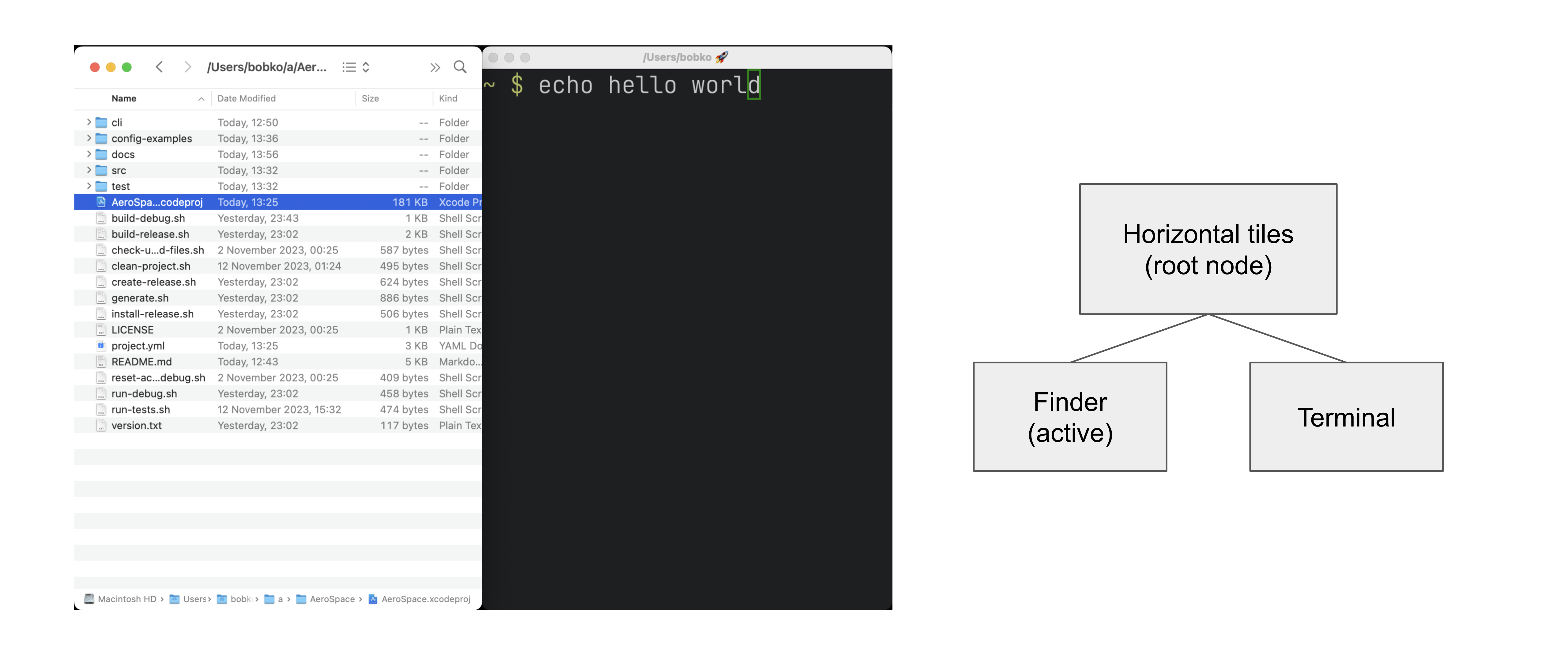
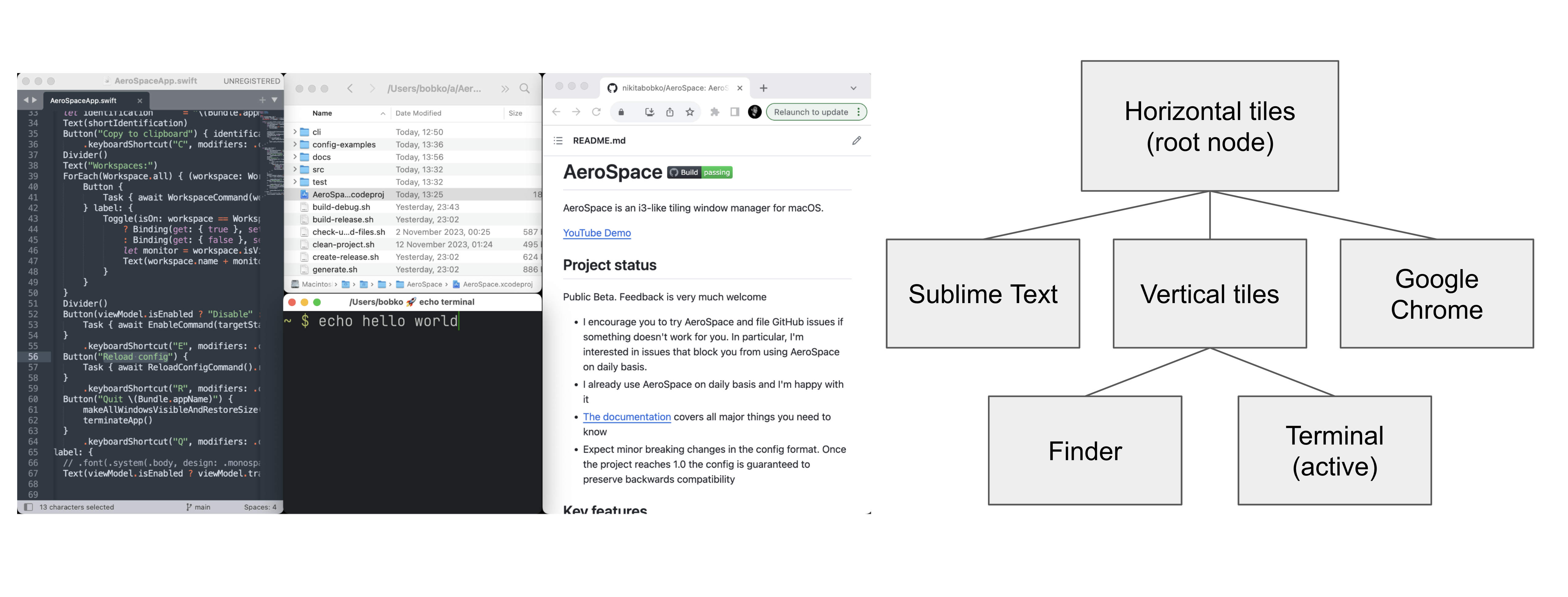
You can nest containers as deeply as you want to.
You can navigate in the tree in 4 possible cardinal directions (left, down, up, right). You use focus command to do that.
The tree structure can be changed with three commands:
Layouts
In total, AeroSpace provides 4 possible layouts:
-
h_tileshorizontal tiles (in i3, it’s called "horizontal split") -
v_tilesvertical tiles (in i3, it’s called "vertical split") -
h_accordionhorizontal accordion (analog of i3’s "tabbed layout") -
v_accordionvertical accordion (analog of i3’s "stacked layout")
From the previous section, you’re already familiar with the tiles layout.
Accordion is a layout where windows are placed on top of each other.
-
The horizontal accordion shows left and right paddings to visually indicate the presence of other windows in those directions.
-
The vertical accordion shows top and bottom paddings to visually indicate the presence of other windows in those directions.
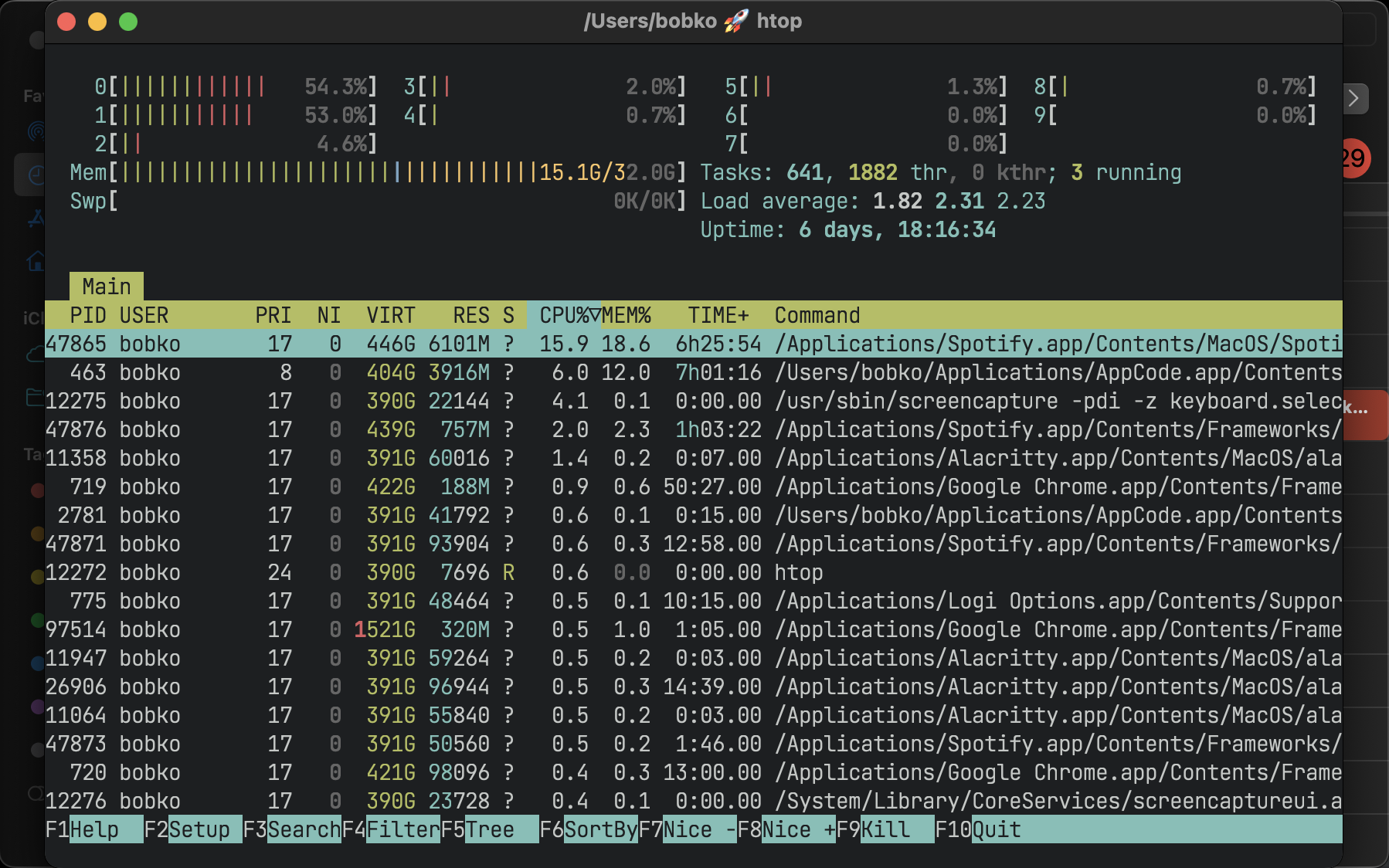
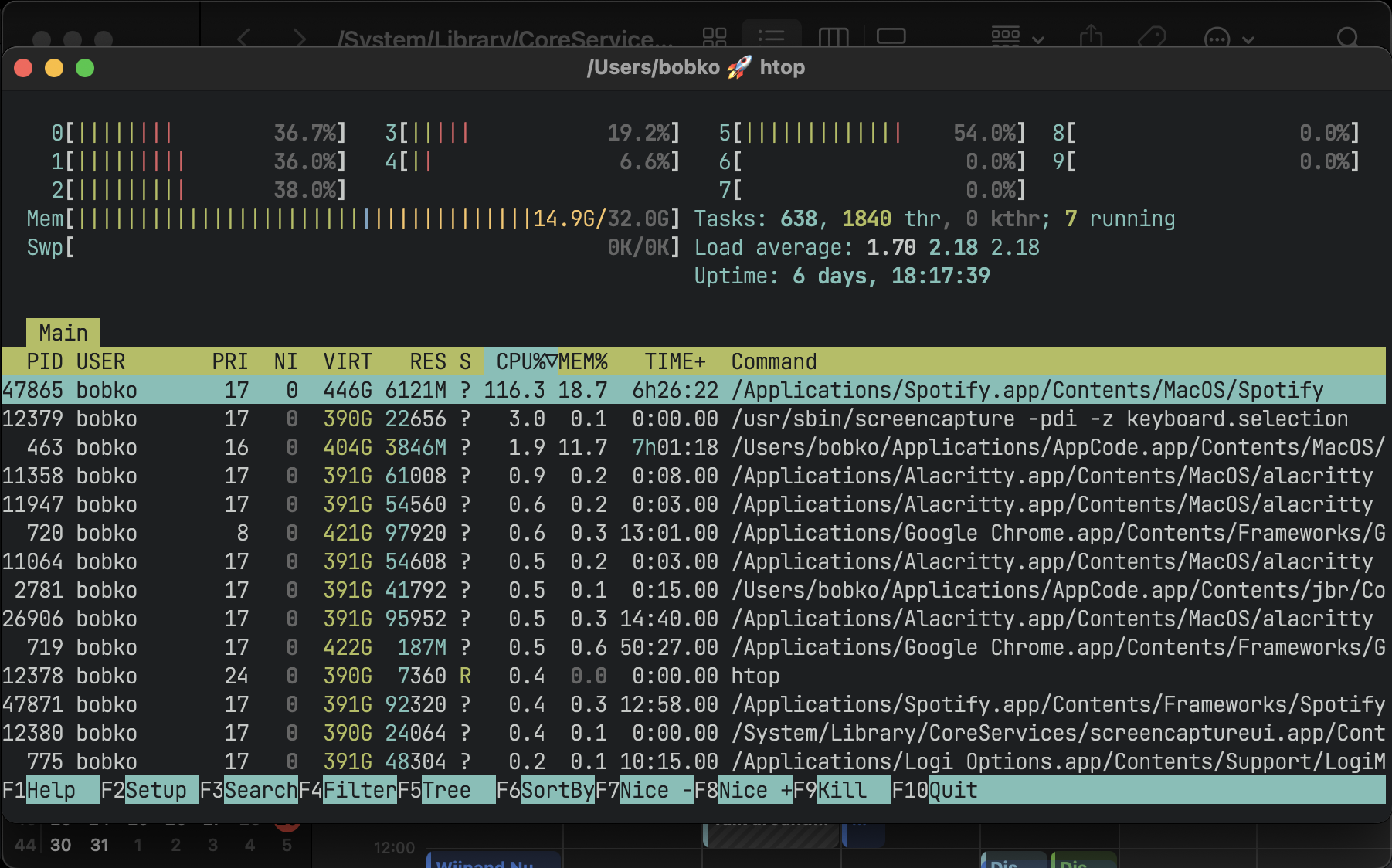
Just like in a tiles layout, you can use the focus command to navigate an accordion layout.
You can navigate the windows in an h_accordion by using the focus (left|right) command. While in a v_accordion, you can navigate the windows using the focus (up|down) command.
Accordion padding is configurable via accordion-padding option.
Normalization
By default, AeroSpace performs two types of tree normalizations:
-
Containers that have only one child are "flattened". The root container is an exception, it is allowed to have a single window child. Configured by
enable-normalization-flatten-containers -
Containers that nest into each other must have opposite orientations. Configured by
enable-normalization-opposite-orientation-for-nested-containers
An optional third normalization, "binary tree" (off by default), can be enabled with enable-normalization-binary-tree. When enabled, it overrides the opposite-orientation normalization and applies two rules to every tiling container:
-
The tree is forced to be binary: any container with more than two children has its rightmost siblings wrapped in a new sub-container until exactly two remain.
-
Each container is oriented based on the aspect ratio of its allotted rect:
horizontalif width > height,verticalotherwise. The rect is computed top-down starting from the workspace’s visible rect, split in half (by children weights) at every level.
::: {wrapper="1" role="lead"} Example 1 :::
According to the first normalization, such layout isn’t possible:
h_tiles (root node)
└── v_tiles
    └── window 1
it will be immediately transformed into
v_tiles (new root node)
└── window 1
::: {wrapper="1" role="lead"} Example 2 :::
According to the second normalization, such layout isn’t possible:
h_tiles
├── window 1
└── h_tiles
    ├── window 2
    └── window 3
it will be immediately transformed into
h_tiles
├── window 1
└── v_tiles
    ├── window 2
    └── window 3
Normalizations make it easier to understand the tree structure by looking at how windows are placed on the screen. Though you can disable normalizations by placing these lines to your config:
enable-normalization-flatten-containers = false
enable-normalization-opposite-orientation-for-nested-containers = false
enable-normalization-binary-tree = false
Unless you’re hardcore i3 user who knows what they are doing, it’s recommended to keep the normalizations enabled.
Each normalization can also be overridden on a per-workspace basis with the enable-normalization command. The override beats the global config for the targeted workspace and lives as long as the workspace itself; pass reset to remove it. This is the per-workspace control mentioned in issue #260.
Floating windows
Normally, floating windows are not considered to be part of the tiling tree. But it’s not the case with focus command.
From focus command perspective, floating windows are part of tiling tree. The floating window parent container is determined as the smallest tiling container that contains the center of the floating window.
This technique eliminates the need for an additional binding for focusing floating windows.
Emulation of virtual workspaces
Native macOS Spaces have a lot of problems
-
The animation for Spaces switching is slow
-
You can’t disable animation for Spaces switching (you can only make it slightly faster by turning on
Reduce motionsetting, but it’s suboptimal) -
You have a limit of Spaces (up to 16 Spaces with one monitor)
-
You can’t create/delete/reorder Space and move windows between Spaces with hotkeys (you can only switch between Spaces with hotkeys)
-
Apple doesn’t provide public API to communicate with Spaces (create/delete/reorder/switch Space and move windows between Spaces)
Since Spaces are so hard to deal with, AeroSpace reimplements Spaces and calls them "Workspaces". The idea is that if the workspace isn’t active then all of its windows are placed outside the visible area of the screen, in the bottom right or left corner. Once you switch back to the workspace, (e.g. by the means of workspace command, or cmd + tab) windows are placed back to the visible area of the screen.
When you quit the AeroSpace or when the AeroSpace detects that it’s about to crash, AeroSpace will place all windows back to the visible area of the screen.
AeroSpace shows the name of currently active workspace in its tray icon (top right corner), to give users a visual feedback on what workspace is currently active.
The intended workflow of using AeroSpace workspaces is to only have one macOS Space (or as many monitors you have, if Displays have separate Spaces is enabled) and don’t interact with macOS Spaces anymore.
Note
For better or worse, macOS doesn’t allow to place windows outside the visible area entirely. You will still be able to see a 1 pixel vertical line of "hidden" windows in the bottom right or left corner of your screen. That means, that if AeroSpace crashes badly you will still be able to manually "unhide" the windows by dragging these few pixels to the center of the screen.
If you want to minimize the visibility of hidden windows, it’s recommended to place Dock in the bottom (and additionally turn automatic hiding on)
Proper monitor arrangement
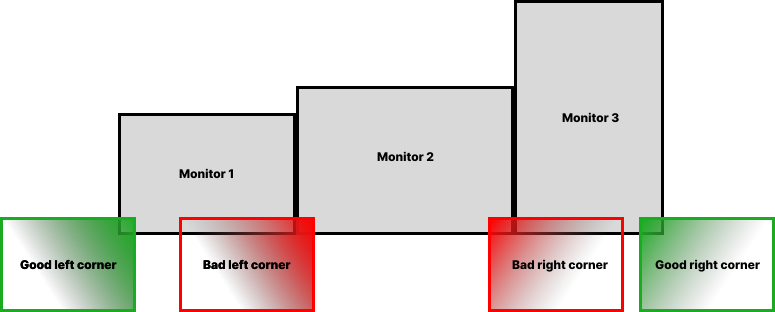
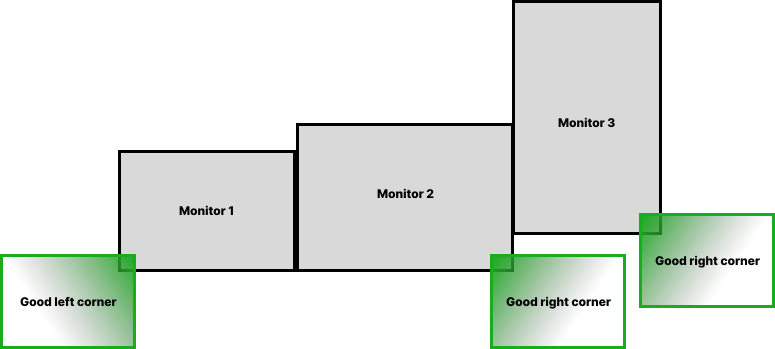
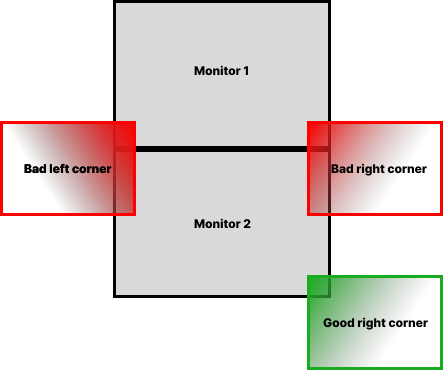
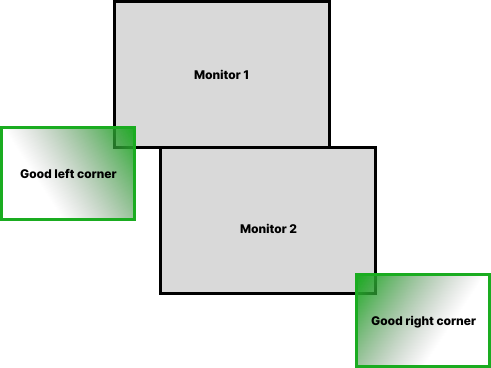
Since AeroSpace needs a free space to hide windows in, please make sure to arrange monitors in a way where every monitor has free space in the bottom right or left corner. (System Settings → Displays → Arrange...)
If you fail to arrange your monitors properly, you will see parts of hidden windows on other monitors.
A note on mission control
For some reason, mission control doesn’t like that AeroSpace puts a lot of windows in the bottom right corner of the screen. Mission control shows windows too small even when there is enough space to show them bigger.
There is a workaround. You can enable Group windows by application setting:
defaults write com.apple.dock expose-group-apps -bool true && killall Dock
(or in System Settings: System Settings → Desktop & Dock → Group windows by application). For whatever weird reason, it helps.
A note on “Displays have separate Spaces”
There is an observation that macOS works better and more stable if you disable Displays have separate Spaces. (It’s enabled by default) People report all sorts of weird issues related to focus and performance when this setting is enabled:
-
Wrong window may receive focus in multi-monitor setup: #101 (Bug in Apple API)
-
Wrong borderless Alacritty window may receive focus in single monitor setup: #247 (Bug in Apple API)
-
Performance issues: #333
-
macOS randomly switches focus back: #289
When Displays have separate Spaces is enabled, moving windows between monitors causes windows to move between different Spaces which is not correctly handled by the public APIs AeroSpace uses, apparently, these APIs are not aware about Spaces existence. Spaces are just cursed in macOS. The less Spaces you have, the better macOS behaves.
| “Displays have separate Spaces” is enabled | “Displays have separate Spaces” is disabled | |
|---|---|---|
| Is it possible for window to span across several monitors? | ❌ No. macOS limitation | 👍 Yes |
| Overall stability and performance | ❌ Weird focus and performance issues may happen (see the list above) | 👍 Public Apple API are more stable (which in turn affects AeroSpace stability) |
| When the first monitor is in fullscreen | 👍 Second monitor operates independently | ❌ Second monitor is unusable black screen |
| macOS status bar ... | ... is displayed on both monitors | ... is displayed only on main monitor |
If you don’t care about macOS native fullscreen in multi-monitor setup (which is itself clunky anyway, since it creates a separate Space instance), I recommend disabling Displays have separate Spaces.
You can disable the setting by running:
defaults write com.apple.spaces spans-displays -bool true && killall SystemUIServer
(or in System Settings: System Settings → Desktop & Dock → Displays have separate Spaces). Logout is required for the setting to take effect.
Shortcuts, Spotlight and Focus filters
AeroSpace-edge only
This is a fork feature. Upstream AeroSpace has no App Intents support.
AeroSpace-edge registers its commands as native App Intents, which makes them available to Shortcuts, Spotlight and macOS Focus modes without shelling out to the CLI.
Three intents are published:
| Intent | What it does |
|---|---|
| Run Command | Runs any AeroSpace command, using exactly the CLI syntax — workspace 3, layout tiles, move-node-to-workspace 2. |
| Focus Workspace | Switches to a workspace, with existing workspaces offered as autocomplete. |
| Switch Workspace (Focus filter) | Attaches a workspace to a macOS Focus mode. |
Run Command accepts anything the CLI does, so every command — including ones added later — is
available with no extra work. exec-and-forget is the one exception: it is rejected, exactly as it is
over the socket, because it would turn any Shortcut into arbitrary shell execution routed through
AeroSpace. Shortcuts already ships a Run Shell Script action for that.
From Spotlight
Open Spotlight and type Focus AeroSpace-edge workspace or Run AeroSpace-edge command. On macOS 26
Spotlight runs App Intents directly, so this needs no Shortcut to be created first.
As a Focus filter
System Settings → Focus → (pick a Focus) → Focus Filters → Add Filter → AeroSpace-edge, then choose a
workspace. Turning on that Focus switches to the workspace; macOS restores your previous state when the
Focus ends.
This is the piece that has no equivalent elsewhere: Focus filters are reachable only through App Intents, so a window manager driven purely by an external hotkey daemon cannot offer one. Wiring "Work Focus on → workspace 2, Do Not Disturb on → workspace 5" needs no config and no scripting.
If a Focus filter names a workspace that no longer exists, it does nothing rather than raising a system error — a filter firing at 9am shouldn't greet you with an alert.
Compared to the CLI
Intents run through the same parse → execute path as aerospace-edge and the socket server, so
behavior is identical. Use whichever fits: the CLI for scripts and status bars, intents for Shortcuts
automations, Spotlight and anything that should follow a Focus mode.
Callbacks
'on-window-detected' callback
You can use on-window-detected config option to run commands every time a new window is detected.
on-window-detected = [
    {
        if = 'test %{app-bundle-id} = com.apple.systempreferences',
        check-further-callbacks = true,
        run = ['layout floating', 'move-node-to-workspace S'],  # The callback itself
    },
]
on-window-detected is an ordered list of callback objects. Every object has if and run (both are mandatory) keys inside. When a new window is detected:
-
AeroSpace processes the list of the callback objects in the defined order.
-
For every callback object, AeroSpace runs the command in the
if. -
If the
ifcommand exits with zero exit code (successful), then AeroSpace runs the command in therunand doesn't process any further callback objects. -
If the
ifcommand exits with non-zero exit code (fail), then AeroSpace attempts processing the next object in the list.
test, test-not, true and false commands are designed to be used inside the if.
Additionally, if you want to keep processing the list of callbacks when the if is successful, you can use the check-further-callbacks option like so:
on-window-detected = [
    {
        if = 'test %{app-bundle-id} = com.apple.systempreferences',
        run = ['layout floating', 'move-node-to-workspace S'],

        # The next callbacks will be considered even if this one is successful.
        check-further-callbacks = true,
    },
    # all other callbacks...
]
The older if.* condition keys (if.app-id, if.window-title-regex-substring, …) are still supported. See Legacy 'on-window-detected' syntax.
A common use case is to match against app bundle ID in on-window-detected callback. There are several ways to know app-bundle-id:
-
Take a look at the precompiled list of Apple application IDs
-
You can use
aerospace-edge list-appsCLI command to get IDs of running applications -
mdls -name kMDItemCFBundleIdentifier -r /Applications/App.app
Info
Some windows initialize their title after the window appears. Matching against the window title (%{window-title}, or the legacy if.window-title-regex-substring) may not work as expected for such windows
Examples of automations:
- Assign apps on particular workspaces
on-window-detected = [
    {
        if = 'test %{app-bundle-id} = org.alacritty',
        run = 'move-node-to-workspace T', # mnemonics T - Terminal
    },
    {
        if = 'test %{app-bundle-id} = com.google.Chrome || test %{app-bundle-id} = org.mozilla.firefox',
        run = 'move-node-to-workspace W', # mnemonics W - Web browser
    },
    {
        if = 'test %{app-bundle-id} = com.jetbrains.intellij',
        run = 'move-node-to-workspace I', # mnemonics I - IDE
    }
]
- Make all windows float by default
on-window-detected = [
    { check-further-callbacks = true, run = 'layout floating', },
    # all other callbacks...
]
'on-focus-changed' callbacks
You can track focus changes using the following callbacks: on-focus-changed and on-focused-monitor-changed.
-
on-focus-changedis called every time focused window or workspace changes. -
on-focused-monitor-changedis called every time focused monitor changes.
A common use case for the callbacks is to implement "mouse follows focus" behavior. All you need is to combine the callback of your choice with move-mouse command:
on-focused-monitor-changed = ['move-mouse monitor-lazy-center'] # Mouse lazily follows focused monitor (default in i3)
# or

on-focus-changed = ['move-mouse window-lazy-center'] # Mouse lazily follows any focus (window or workspace)
You shouldn’t rely on the order callbacks are called, since it’s an implementation detail and can change from version to version.
The callbacks are "recursion resistant", which means that any focus change within the callback won’t retrigger the callback. Changing the focus within these callbacks is a bad idea anyway, and the way it’s handled will probably change in future versions.
'exec-on-workspace-change' callback
exec-on-workspace-change callback allows to run arbitrary process when focused workspace changes. It may be useful for integrating with bars.
# Notify Sketchybar about workspace change
exec-on-workspace-change = ['/bin/bash', '-c',
    'sketchybar --trigger aerospace_workspace_change FOCUSED=$AEROSPACE_FOCUSED_WORKSPACE'
]
Besides the exec.env-vars, the process has access to the following environment variables:
-
AEROSPACE_FOCUSED_WORKSPACE- the workspace user switched to -
AEROSPACE_PREV_WORKSPACE- the workspace user switched from -
AEROSPACE_WORKSPACEandAEROSPACE_WINDOW_ID- describe the current focus. Exactly one is set:AEROSPACE_WINDOW_IDif a window is focused, otherwiseAEROSPACE_WORKSPACEfor an empty workspace. This lets the callback forward the focus to anotheraerospace-edgecommand without a self-conflicting target.
For a more elaborate example on how to integrate with Sketchybar see ./goodies
Environment variables
When AeroSpace runs a callback’s command (such as an 'on-window-detected' callback or an 'on-focus-changed' callbacks), it adds one of the following environment variables to the command’s environment to identify the target the callback fired against:
-
AEROSPACE_WINDOW_ID- the numeric ID of a specific window -
AEROSPACE_WORKSPACE- the name of a specific workspace
If there is a target window, AEROSPACE_WINDOW_ID is set to its ID. Otherwise (the target is an empty workspace with no window to point at), AEROSPACE_WORKSPACE is set to that workspace’s name instead. Exactly one of the two is set at a time.
In practice:
-
For 'on-window-detected' callback, the target is the newly detected window, so
AEROSPACE_WINDOW_IDis always set. -
For 'on-focus-changed' callbacks (
on-focus-changed,on-focused-monitor-changed), the target is the new focus, soAEROSPACE_WINDOW_IDis set when a window is focused, andAEROSPACE_WORKSPACEis set when focus lands on an empty workspace.
Commands that need a target (layout, move-node-to-workspace, move, etc.) honor the forwarded context before falling back to the currently focused window or workspace. That makes all commands in callbacks operate on the originating window or workspace even when global focus has already moved:
on-window-detected = [
    # Both commands operate on the *just-detected* window:
    #   1. 'move-node-to-workspace 2' moves the new window to workspace 2.
    #      Moving the window away typically causes some *other* window on
    #      the current workspace to receive focus.
    #   2. 'layout floating' still floats the originally detected window
    #      (not the window that became focused after step 1), because the second
    #      command inherits the same AEROSPACE_WINDOW_ID as the first.
    { if = 'true', run = 'move-node-to-workspace 2; layout floating' },

    # 'aerospace-edge move-node-to-workspace W' moves the *newly detected* window,
    # because the child shell inherits AEROSPACE_WINDOW_ID pointing at it.
    { if = 'true', run = 'exec-and-forget sleep 1; aerospace-edge move-node-to-workspace W' },
]
Overriding the context with --window-id / --workspace
Many commands that need a target (layout, move-node-to-workspace, close, etc.) accept explicit --window-id <id> and/or --workspace <name> options. These flags take precedence over the environment variables. The full resolution order, from highest to lowest priority, is:
-
--window-idcommand-line option -
--workspacecommand-line option -
AEROSPACE_WINDOW_IDenvironment variable -
AEROSPACE_WORKSPACEenvironment variable -
The currently focused window or the currently focused empty workspace
Multiple monitors
-
The pool of workspaces is shared between monitors
-
Each monitor shows its own workspace. The showed workspaces are called "visible" workspaces
-
Different monitors can’t show the same workspace at the same time
-
Each workspace (even invisible, even empty) has a monitor assigned to it
-
By default, all workspaces are assigned to the "main" monitor ("main" as in
System → Displays → Use as)
When you switch to a workspace:
-
AeroSpace takes the assigned monitor of the workspace and makes the workspace visible on the monitor
-
AeroSpace focuses the workspace
You can move workspace to a different monitor with move-workspace-to-monitor command.
The idea of making pool of workspaces shared is based on the observation that most users have a limited set of workspaces on their secondary monitors. Secondary monitors are frequently dedicated to specific tasks (browser, shell), or for monitoring various activities such as logs and dashboards. Thus, using one workspace per secondary monitor and "the rest" on the main monitor often makes sense.
Note
The only difference between AeroSpace and i3 is switching to empty workspaces. When you switch to an empty workspace, AeroSpace puts the workspace on an assigned monitor; i3 puts the workspace on currently active monitor.
-
I find that AeroSpace model works better with the observation listed above.
-
AeroSpace model is more consistent (it works the same for empty workspaces and non-empty workspaces)
Window placement is remembered across restarts
AeroSpace-edge only
This is a fork-only behavior with no upstream equivalent.
AeroSpace-edge records which workspace each window sits on, and replays that placement the next time it starts. Restarting the app — or recovering from a crash — no longer collapses every window into whichever workspace happens to be active; two browser windows that were on separate workspaces come back on separate workspaces.
The snapshot is written to ~/Library/Application Support/AeroSpace-edge/window-layout.json, a
couple of seconds after any layout change, and read back once at startup. There is nothing to
configure. Deleting the file is harmless: the next layout change writes a fresh one.
Windows are matched back by their WindowServer id, which stays valid for as long as the window itself lives, so placement always restores when only AeroSpace restarted. After a reboot or an app relaunch those ids are gone, and windows are instead matched on app bundle id plus window title — close, but not exact when an app has several identically titled windows. Anything that can't be matched is left wherever it would otherwise land.
Startup runs on-window-detected callbacks first and replays the
saved placement afterwards, so for a window that was matched, the workspace you last left it on
wins over a move-node-to-workspace window rule. Unmatched windows are placed by your rules as
before.
Assign workspaces to monitors
You can use workspace-to-monitor-force-assignment syntax to assign workspaces to always appear on particular monitors
workspace-to-monitor-force-assignment = {
    1 = 1,                            # Monitor sequence number from left to right. 1-based indexing
    2 = 'main',                       # Main monitor
    3 = 'secondary',                  # Non-main monitor in case when there are only two monitors
    4 = 'built-in',                   # Case insensitive regex substring
    5 = '^built-in retina display$',  # Case insensitive regex match
    6 = ['secondary', 'dell'],        # You can specify multiple patterns.
                                      #   The first matching pattern will be used
}
-
Left hand side of the assignment is the workspace name
-
Right hand side of the assignment is the monitor pattern
Supported monitor patterns:
-
main- "Main" monitor ("main" as inSystem Settings → Displays → Use as) -
secondary- Non-main monitor in case when there are only two monitors -
<number>(e.g.1,2) - Sequence number of the monitor from left to right. 1-based indexing -
<regex-pattern>(e.g.dell.*,built-in.*) - Case insensitive regex substring pattern
You can specify multiple patterns as an array. The first matching pattern will be used
move-workspace-to-monitor command has no effect for workspaces that have monitor assignment
Dialog heuristics
-
Apple provides accessibility API for apps to let others know which of their windows are dialogs
-
A lot of apps don’t implement this API or implement it improperly
Even some Apple dialogs don’t implement the API properly. (E.g. Finder "Copy" progress window doesn’t let others know that it’s a dialog)
AeroSpace uses the API to gently ask windows whether they are dialogs, but AeroSpace also applies some heuristics.
For example, windows without a fullscreen button (NB! fullscreen button and maximize button are different buttons) are generally considered dialogs, excluding terminal apps (WezTerm, Alacritty, iTerm2, etc.).
Windows that are recognized as dialogs are floated by default.
If you find that some windows are not handled properly, you’re welcome to create a PR that improves the heuristic. It’s fine to hardcode special handling for popular applications, AeroSpace already does it. Please see isDialogHeuristic function in AeroSpace sources.
You can also use on-window-detected to force tile or force float all windows of a particular application:
-
Force tile all the windows (or windows of a particular app)
on-window-detected = [ # Other callbacks... { if.app-id = '...', run = 'layout tiling', }, # Other callbacks... ] -
Force float all the windows (or windows of a particular app)
on-window-detected = [
    # Other callbacks...
    { if.app-id = '...', run = 'layout floating', },
    # Other callbacks...
]
Common pitfall: keyboard keys handling
If you can’t make AeroSpace handle some keys in your config, please make sure that you don’t have keys conflict with other software that might listen to global keys (e.g. skhd, Karabiner-Elements, Raycast)
If bindings that use the option (opt/alt) key stop working after some time, the root cause is usually macOS "secure input" (also known as Secure Keyboard Entry). When a background app enables secure input mode and fails to release it, macOS suppresses delivery of certain global key events, which breaks AeroSpace’s opt-key bindings.
A common culprit is KeePassXC: at the time of writing, v2.7.10 can get stuck holding secure input mode (see: #11906). The current workaround is to downgrade to v2.7.9. Other apps (e.g. Ferdium) can trigger the same problem, so if you don’t use KeePassXC, check whether another running app is holding secure input.
Socket protocol
This section documents the client-server socket protocol that the aerospace-edge CLI uses to talk to the running AeroSpace-edge.app server. It is intended for people who want to integrate with AeroSpace from a custom client (e.g. a status bar, an editor plugin, a script in a language without an aerospace-edge wrapper).
Socket location
AeroSpace listens on a Unix-domain stream socket:
/tmp/vitorebatista.aerospace-edge-${USER}.sock        # AeroSpace-edge.app (release builds)
/tmp/vitorebatista.aerospace-edge.debug-${USER}.sock  # AeroSpace-edge-Debug.app (debug builds only)
${USER} is the result of NSUserName() in Swift (typically equivalent to $USER / id -un / whoami in shell).
Wire format
All numbers on the wire are 4-byte unsigned integers in host byte order. AeroSpace only runs on Apple Silicon and Intel macOS, both little-endian, so in practice the framing is always 4 bytes, little-endian.
Immediately after connecting, both sides perform a one-shot handshake:
-
The Client writes its
SOCKET_PROTOCOL_VERSIONas a single 4-byte unsigned integer. -
The Server reads the client’s
SOCKET_PROTOCOL_VERSIONand decides in what kind of compatibility mode it needs to communicate with this particular client. -
The Server writes its
SOCKET_PROTOCOL_VERSIONas a single 4-byte unsigned integer. -
The Client compares the two versions and decides if it wants to process.
-
The Server compares the two versions and decides if it wants to process.
The current and the only valid value for SOCKET_PROTOCOL_VERSION is 1. Currently, right after sending its own version, the server disconnects if it doesn’t recognise SOCKET_PROTOCOL_VERSION.
After the handshake, every message (in either direction) is a length-prefixed JSON frame:
+-----------------------+----------------------------+
| length (UInt32, LE)   | JSON payload (UTF-8 bytes) |
+-----------------------+----------------------------+
length is the byte length of the JSON payload, not counting the 4 length-prefix bytes themselves. The payload is a UTF-8-encoded JSON object.
The flow then depends on the command:
-
One-shot commands: (basically, almost all commands) The client sends one
ClientRequestframe. The server sends oneServerAnswerframe. This loop repeats indefinitely until the client disconnects. -
subscribe command: (treated separately) The client sends one
ClientRequestframe, then the server sends an unbounded stream ofServerEventframes until the client disconnects. The client must not send anything else on the connection.
ClientRequest
The request payload is a JSON object with the following fields:
{
    "args": ["workspace", "1"],
    "stdin": "",
    "windowId": null,
    "workspace": null
}
| Field | Type | Description |
|---|---|---|
args |
array of strings | The CLI arguments as you would pass them to aerospace-edge, excluding the program name itself. For example, ["workspace", "1"] is the wire form of aerospace-edge workspace 1. To send the subscribe command, pass ["subscribe", ...] here. |
stdin |
string | Contents to feed to the command as standard input. Use "" if the command doesn’t read stdin. Some commands (e.g. workspace --stdin) consume this field. |
windowId |
unsigned 32-bit integer or null |
The value of the AEROSPACE_WINDOW_ID environment variable as the client saw it, or null if there is no such variable in scope. AeroSpace sets this variable when invoking exec callbacks so that the called process knows the window it was triggered from. If you are calling AeroSpace from your own context (no surrounding window), send null. |
workspace |
string or null |
The value of the AEROSPACE_WORKSPACE environment variable as the client saw it, or null if unset. Same rationale as windowId. |
ServerAnswer
The reply to a one-shot command is a JSON object:
{
    "exitCode": 0,
    "stdout": "1\n2\n3",
    "stderr": "",
    "serverVersionAndHash": "0.20.0-Beta 33fa0643"
}
| Field | Type | Description |
|---|---|---|
exitCode |
signed 32-bit integer | 0 on success, non-zero on failure. Mirrors what the aerospace-edge CLI would have exited with. |
stdout |
string | What the CLI would have printed to standard output. May contain newlines. |
stderr |
string | What the CLI would have printed to standard error. |
serverVersionAndHash |
string | Free-form "<version> <git-hash>" identifying the running server. Useful for compatibility checks; compare against the equivalent string from your own client and warn the user on mismatch. |
Subscribe mode
When the client sends a request with args starting with "subscribe", the server enters event-streaming mode. The remaining args follow the same syntax as the aerospace-edge subscribe CLI command (--all, --no-send-initial, or an explicit list of event types).
After accepting the subscription, the server writes framed JSON objects in the same length-prefixed format as ServerAnswer. The server keeps writing until the connection is closed.
End-to-end example
A minimal Python client that runs aerospace-edge list-workspaces --focused:
import json, os, socket, struct

SOCKET_PROTOCOL_VERSION = 1
sock_path = f"/tmp/vitorebatista.aerospace-edge-{os.getlogin()}.sock"

def send_frame(s, payload):
    s.sendall(struct.pack("<I", len(payload)) + payload)

def recv_exact(s, n):
    buf = b""
    while len(buf) < n:
        chunk = s.recv(n - len(buf))
        if not chunk:
            raise ConnectionError("server closed connection")
        buf += chunk
    return buf

def recv_frame(s):
    (length,) = struct.unpack("<I", recv_exact(s, 4))
    return recv_exact(s, length)

with socket.socket(socket.AF_UNIX, socket.SOCK_STREAM) as s:
    s.connect(sock_path)

    # Version handshake
    s.sendall(struct.pack("<I", SOCKET_PROTOCOL_VERSION))
    (server_version,) = struct.unpack("<I", recv_exact(s, 4))
    if server_version != SOCKET_PROTOCOL_VERSION:
        raise RuntimeError(f"unsupported server version {server_version}")

    # One-shot command
    request = {
        "args": ["list-workspaces", "--focused"],
        "stdin": "",
        "windowId": None,
        "workspace": None,
    }
    send_frame(s, json.dumps(request).encode("utf-8"))

    answer = json.loads(recv_frame(s))
    if answer["exitCode"] != 0:
        raise RuntimeError(answer["stderr"])
    print(answer["stdout"])
Deprecations
Legacy 'on-window-detected' syntax
The following if.* syntax inside on-window-detected is soft deprecated. It is still supported, and it will probably remain supported forever given its wide use.
on-window-detected = [
    {
        if.app-id = 'com.apple.systempreferences', # ❌ Please don't do that
        run = ['layout floating', 'move-node-to-workspace S'],
    },
]
Instead of the if.* syntax, you are encouraged to use if = 'test ...' syntax. See the test helper command documentation for more information.
on-window-detected = [
    {
        if = 'test %{app-bundle-id} = com.apple.systempreferences', # ✅ Do this
        run = ['layout floating', 'move-node-to-workspace S'],
    },
]
The [[on-window-detected]] array-of-tables form (one [[on-window-detected]] header per callback) is the same list written in a different TOML notation, and it keeps working too.
For reference, the legacy if.* condition keys are:
| Condition TOML key | Condition description |
|---|---|
if.app-id |
Application ID exact match of the detected window. Can also be an array: ['app1.id', 'app2.id'] |
if.app-id-regex-substring |
Application ID case insensitive regex substring of the detected window |
if.app-name-regex-substring |
Application name case insensitive regex substring of the detected window |
if.window-title-regex-substring |
Window title case insensitive regex substring of the detected window |
if.during-aerospace-startup |
- If true then run the callback only during AeroSpace startup.- If false then run callback only NOT during AeroSpace startup.- If not specified then the condition isn’t checked |
if.workspace |
Window’s workspace name exact match |
All the specified if.* conditions must match for run to be run. If no conditions (and no if) are specified then run is run every time a new window is detected.
-
if.during-aerospace-startup = trueis useful if you want to do the initial app arrangement only on startup. -
if.during-aerospace-startup = falseis useful if you want to relaunch AeroSpace, but the callback has side effects that you don’t want to run on every relaunch. (e.g. the callback opens new windows)